LiDAR gets the headlines, but it's only on the Pro models. The good news: every iPhone since the 6s can run ARKit, Apple's augmented-reality engine — and ARKit alone is enough to measure a room and produce a real floor plan. It just works a little differently.
How AR measuring works
Instead of firing lasers, ARKit tracks visual features through the camera while fusing motion data from the gyroscope and accelerometer. As you move the phone, it builds a map of the space and can tell — to a surprising degree of accuracy — exactly where the phone is within it. Mark two points, and the app knows the real-world distance between them.
In Floor Plan App, tap Measure in AR (no LiDAR needed) on the home screen to start.
Step-by-step
- Calibrate. Sweep the phone slowly over the floor for a few seconds so ARKit can find the floor plane. Textured floors (wood grain, carpet, tile lines) lock on fastest.
- Mark the corners. Aim the on-screen marker at a corner of the room where the walls meet the floor, and tap. Move to the next corner and repeat, working your way around the room.
- Close the loop. When you tap your starting corner again, the outline closes and the room's shape and area are captured.
- Add openings. Mark doors and windows along each wall so they appear on the plan.
Getting accurate results
- Keep the phone moving smoothly. AR tracking drifts if you whip the phone around. Smooth, deliberate movements keep the map tight.
- Good light matters more than with LiDAR. ARKit is camera-based; a dim room means fewer visual features to track.
- Tap corners at floor level. The floor is the reference plane, so corner points marked at the baseboard are the most accurate.
- Sanity-check one wall. If you want confidence, tape-measure a single wall and compare. If that one matches, the rest of the loop will be close.
Then it's a normal floor plan
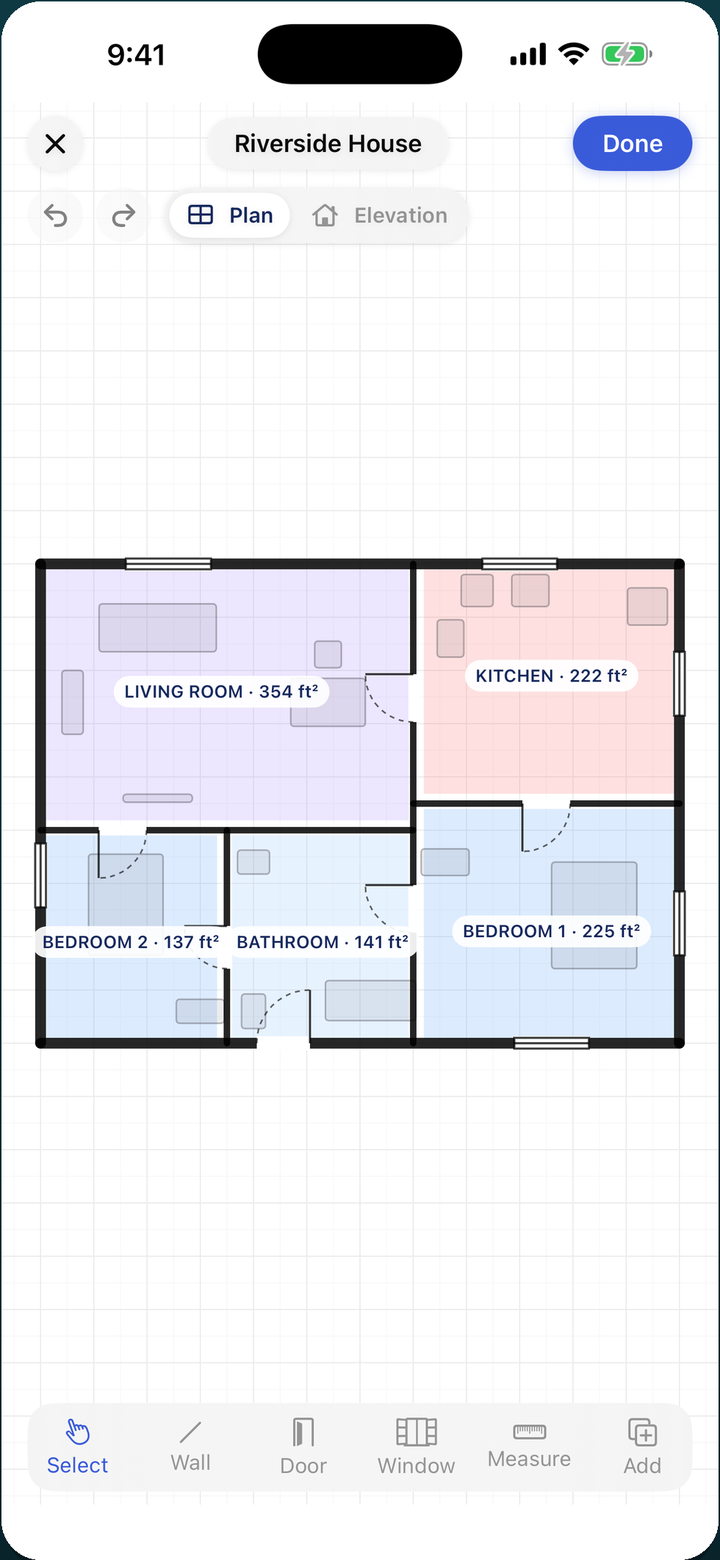
Once the room is captured, there's no difference between an AR-measured plan and a LiDAR-scanned one — you get the same editor, the same automatic room labels and areas, the same PDF and SVG export, and the same one-tap 3D view.
Try it on your next room
Floor Plan App is free on iPhone and iPad — scan with LiDAR, measure in AR, or draw by hand. No sign-up.
